UPDATE: Great news for all you Straight Talk users! Since I’ve posted a few articles here on WireValley in regards to my experience with Straight Talk, APN settings, tutorials, screenshots, helping others, etc. I thought it would be a great idea to start a support website for all of us Straight Talk users!
———————————-
█ Want to see if I can help you live via instant messenger? Feel free to contact me on any of the following:
█ AIM: RichardHTTP
█ GTalk: RichardHTTP
█ ICQ: 329577628
█ MSN/Live: RichardHTTP (at) outlook.com
█ Skype: RichardHTTP
█ Trillian: RichardHTTP
█ Yahoo: RichardHTTP
———————————-
I’ve been using Straight Talk now for over a week and everything is still going great! I had one hiccup with picture messaging. I had entered in another APN setting for MMS picture messaging and everything was working good for a few days. Then, I was having issues with my data connection so I changed my other APN setting with one I found online. However, that ended up screwing up my MMS settings again! Sounds confusing, but really it was an easy fix and I’m here to give you the settings you need to talk, text, data, and MMS.
Enter in this APN for your talk, text, and data:
_________________________________
Name: ST (or whatever you want)
APN: att.mvno
Proxy: proxy.mvno.tracfone.com
Port: 80
Username: Not set
Password: Not set
Server: Not set
MMSC: http: mmsc. cingular. com (**no spaces and no”//”**)
MMSC proxy: 66.209.11.33
MMS port: 80
MCC: 310
MNC: 410
Authentication Type: Not set
APN type: default,supl,mms (notice I took off the mms! This is because we’ll enter a 2nd APN for mms.)
APN protocol: IPv4
Bearer: Not specified
_________________________________
Now, we’ll enter in a another APN for your picture messaging. So go to your APN settings on your phone and create a new APN. Use these settings:
___________________________________________
Name: MMS
APN: att.mvno
skip down to MMSC: http://mmsc.cingular.com
MMS proxy: proxy.mvno.tracfone.com
MMS port: 80
MCC: 310
MNC: 410
Authentication Type: Not set
skip to APN type and enter: mms
THEN SAVE
___________________________________________
In case you like screenshots, here are the first two screenshots and how your settings should look for the your 1st APN titled ST (or whatever you called it.)
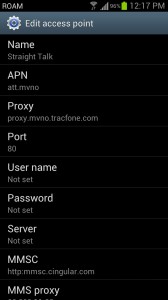
continued on to 2nd screenshot…
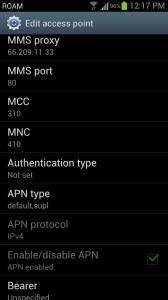
Now onto your MMS APN setting. These are the screenshots for how your 2nd APN called MMS should look:
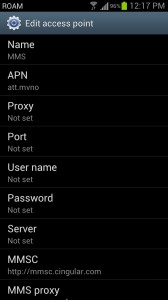
Continued on to 2nd screenshot….
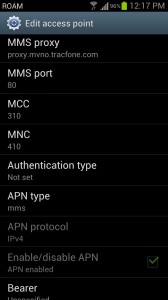
There you go! Your phone should have perfect working talk, text, data, and picture messaging! I haven’t had any issues since I’ve using these two APN settings together.
August 23, 2012 at 5:01 pm
What about the MCC and MNC for the MMS APN settings? My phone enters 310 and 410 by default, should I delete them?
August 23, 2012 at 5:03 pm
No, sorry! Leave those there!
December 14, 2012 at 3:03 pm
I’ve gotten the settings in and still can receive pictures but cannot send. Any clues on why this could be happening? it’s incredibly annoying.
December 14, 2012 at 3:42 pm
Yup! Try this.. my settings have changed (yet again) since updating to Jelly Bean on my phone. Was running into the same issues.
Under your first APN called ST (or whatever you called it) completely REMOVE “MMSC proxy: 66.209.11.33″ so there is nothing in there.
STILL leave in the setting above that, and the one below. So that would be MMSC, and MMS port.
Only remove the MMSC Proxy in your first APN setting and let me know if it works.
(still keep the MMSC proxy entered in under you “MMS” APN)
Let me know!
Richard
December 25, 2012 at 11:16 pm
My phone won’t let me edit the APN settings and I have been on the phone with straight talk for over an hour and they are not being able to figure out how to make me be able to send picture messages either.
December 25, 2012 at 11:19 pm
What kind of phone do you have?
January 10, 2013 at 2:28 pm
dude, the apn now is 66.209.11.32 (not 33)
December 2, 2013 at 2:45 am
i have a samsung google nexus s on straight talk cant send picture message or receive picture message internet doesnt work unless on wifi can you help me
October 28, 2013 at 6:57 pm
does not work! i tried it & im still having the same problem,cant send pics plus i noticed my 4G is gone!
June 20, 2015 at 8:18 pm
Will the apn settings work using a t mobile SIM card in my android
August 23, 2012 at 5:08 pm
I’ve updated the post to include that information since it’s put there by default. Thanks for pointing that out.
March 17, 2015 at 8:06 am
I can not send picture text, what is wrong? I left it up for one hour and it never sent my text pic to a friend.
August 23, 2012 at 5:09 pm
When you’re entering in the APN type for the first setting, that is an sup”L” (supl) not an I (i).
APN type: default,supl
August 23, 2012 at 5:15 pm
Yep no problem with that… I got my sim card last night and just havent confirmed fully working MMS. Data works lightning fast with your settings in the first APN settings up above. Original APN settings that came out of ST activation card is garbage!
Edit: just had my wife sent me a pic message, it received a text saying “message not downloaded” once I tapped on it, it downloaded the pic.
So I can confirm all settings are working. SONY XPERIA ARC S, previously with dang ATT!
August 23, 2012 at 5:24 pm
I know! Straight Talk’s APN settings were complete garbage. I don’t know what’s going on their end. When I received my order confirmation e-mail even their phone number was listed wrong! They had 1-800 when it’s supposed to be 1-877.
I’m just glad the service works! I’m glad I could help you too. Also, if you wouldn’t have clicked the “download” button it should download on it’s own in 5 seconds or so and then pop-up like a regular text message
You can test this. Just send a picture message to yourself. As soon as it starts sending leave your text message screen, set your phone down and wait for it to come down. Should popup like regular message without having to click download You probably just got to anxious and had your phone in your hand waiting to see if it came through.
August 23, 2012 at 5:36 pm
Sounds good, one thing I noticed though, I have the sync icon on the notification bar constantly. I went into Accounts and Sync in the phone settings and checked, Picasa Web photos option is constantly syncing. Rebooted, doing the same, I will continue to test. At least I have unlimited data and I don’t have 2GB of pics in picasa anyways. Another friend just confirmed he got my picture text, so everything works for me with your settings. I should post on XDA if you have that thread still going.
August 23, 2012 at 5:39 pm
Just be careful with the unlimited data. You really only get like 2 – 2.5GB. I would tell Picasa to only sync when you’re on wifi. Plus, the constant sync is going to drain your battery.
Yeah, I posted this fix over on XDA, but not with these “new” updated settings. There were a few minor changes to get it working this good. Feel free to post on XDA though and direct people to this post!
August 24, 2012 at 4:06 pm
Do they simply throttle you down or stop your data? I never exceeded 2 GB with ATT but couldn’t use Pandora or anything.
I guess I will bookmark this blog update and see if there are changes to the settings periodically.
Now, I wonder same settings would work with iPhone 3GS, my wife’s phone is being ported as we speak.
August 24, 2012 at 4:13 pm
I’ve read that it depends. Must go by where you live and the network area. I’ve read they throttle you and don’t reset at the first day of the next month, I’ve read they just cut you off and you lose your phone #, I’ve read they will call you and speak to you about it to cut back, etc. All I know is that I will never try to go over 2.5GB. If I get the call at 2.1GB, then I will really cut back and never go over again. However, as mentioned in my articles I checked my history back to February with AT&T and never went over 1.8GB as long as I connect to WiFi at work and home.
Your wife will not get picture messaging on her iPhone with Straight Talk unless you jailbreak it. This is very well known fact on Straight Talk. Apple does not allow you to tinker with the settings as much as Android. This is why I hate Apple so much. They lock their systems down to almost render the user from doing anything with their product.
Like me on Facebook if you don’t mind! (Like box is on the homepage, top right-hand corner.) You can bookmark too whatever you prefer.
If you have more questions or comments, let me know!
August 24, 2012 at 7:38 pm
I hate Apple’s guts! But it is also so simple to use for my technology challenged wifey… And not to mention my college is requiring me to get the iPad! I am just disgusted. Do you know an easy non aggressive way to jailbreak the iPhone 3GS? Or a website? I should do that for her phone so there are no complaints about switching from ATT. To me there are no problems, $130 compared to $45 per phone?!?! I will like you on FB sure, also try G+ I am very active and I share a lot there.
August 24, 2012 at 7:41 pm
Nope, sorry. I don’t know anything about Apple products I don’t use them. I was looking on Facebook on my friends iPhone last weekend and I had to ask a couple questions because I didn’t get where the settings button was LOL.
To be honest, I would just YouTube and learn how to jailbreak. I do know that whenever Apple releases a new update, it locks out your jailbreak and then you have to re-do the process. However, if she’s on the 3GS, I imagine there aren’t anymore updates coming out since it’s an “older” phone, so you would be fine.
August 23, 2012 at 5:38 pm
I will confirm the settings on XDA, is your thread still going on there?
August 27, 2012 at 5:53 pm
With the Ongoing Data issues that the ATT Sim have been giving people, I decided to enter the proxy, Everything worked fine except I couldnt get a speed test. Ive been told having a Proxy disables this. Can you confirm this and which is the best setting to have? Proxy or No proxy?
August 27, 2012 at 6:00 pm
Keep the proxy settings. I haven’t had one data issue (or any issues) since I’ve been using the settings above.
You can download “Internet Speed Test” from the Android market and it’ll give you a speed test. I’m properly 1mbps – 4mbps when running the test. I honestly don’t even worry about the speed tests anymore because my phone works just like it worked when I was with AT&T (except I’m paying half the price). My Pandora loads just fine, and my websites are snappy!
August 31, 2012 at 12:35 pm
Try this app and let me know what you think… HiAPN Global (1 Click Surfing)
looks like it is the only app to back up your APN settings…
October 5, 2012 at 2:45 pm
wow finally. I have been at this for a week. straight talk tech support could not help they told me to call the company that made my phone for help even though my phone worked fine on at&t and the group texts stopped working on straight talk so its absolutely not the phone!!! but this article worked!!! so psyched, i did not even have to set up a second network, for authentication i only had default checked off, once i checked off supl and mms i can now download all pics and groups texts, yeah!!!!
ian
October 5, 2012 at 5:59 pm
Awesome! I’m glad I could be of assistance! Don’t forget to “Like” WireValley on Facebook (home page, right-hand corner.)
If you have more StraightTalk issues, feel free to message me anytime. I’m quick at responding! Once in a while I have to restart the phone cause of bad data connection, but I’m still liking Straight Talk! About to go into my 3rd month
March 8, 2015 at 6:02 pm
Please help me I have a htc one x (att dual core/ not the good quad core) and all I have working w settings listed above is call/text cant get my data to work right and wont send or receive mms
July 27, 2015 at 1:10 am
I have a Samsung Galaxy S4 and this didn’t work for me at all.
July 27, 2015 at 8:50 am
Hi! The settings can depend on your carrier. What carrier do you use?
To get settings you can write your number or last 15 digits on your SIM-card. I will try to help you.
Also you can get settings directly on Straight Talk site.
July 20, 2016 at 4:40 pm
Hey I have a really crappy galaxy core prime with straight talk service and this phone isn’t what I really want but I also have an old galaxy S3 that isn’t working . What I want to know is can I take my sim card out of my working phone and put it in my S3 and fix the APN settings and that would give me service on the S3 and it would also let my phone # stay the same right .
October 10, 2012 at 10:13 pm
I have htc rezound unlocked using ST sim from att and I have voice I can recieve sms but i cant send sms or mms or get on the internet. Could you help me with this issue. I have tried numerous apn’s to no avail
October 10, 2012 at 10:41 pm
Unfortunately, if my *ultimate* APN settings do not work, there’s not a whole lot of support I can offer you.
Do go over my settings on this post with a fine tooth pick to make sure you have all the settings entered correctly, and on the right line. I would often have at least 1 setting off.
Next, if that is all correct, I can only recommend factory resetting the phone and starting over. I just re-installed my whole phone’s operating system this past weekend and I had to enter in the APN settings again, and they worked like a charm. Again, my settings above *should* work for any Android phone :-/ Let me know how it goes and if you discover anything!!
October 14, 2012 at 1:39 am
I hate to be a bother, but would you mind taking pictures of your APN settings and posting them to the article? I’m not entirely clear on the MMSC field for the first APN.
October 21, 2012 at 5:26 pm
I am so sorry for the long delay!! I completely spaced this out… not sure if you figured this out or not already, but screenshots are attached to the post on my blog now. Thanks for the idea. This will come in handy for others as well, I’m sure.
October 25, 2012 at 10:43 pm
i dont know if something is wrong, but i bought Note 2 international factory unlocked and used Tmobile for a while and i had data and mms, but i decided to switch to ST and now, i cant make my data to work if someone has and advice please help…i dont want to go back to Tmobile
October 25, 2012 at 11:16 pm
Are you using StraightTalk over AT&T or T-Mobiles network? You reviewed the information / pictures above line by line?
November 19, 2012 at 10:00 pm
Thank you sooooooo much!!!
December 6, 2012 at 3:15 am
i have a samsung sidekick 4g, can you help me with
my straight talk settings, or will the settings above be the same?
Q 2) my phone use to show (4g) at the top of the screen,
now it only shows the letter (E) why?
December 7, 2012 at 4:02 pm
Let me just say I googled for 2 hours last night and finally today got this page! I am so happy to have found it because now my beloved ION works!!! Thank you to whoever found these settings. I love my phone and didn’t want to give it up!
December 7, 2012 at 10:53 pm
Where do u put this in at on the IPhone 4
December 11, 2012 at 7:58 am
You don’t. You have to jailbreak it.
December 15, 2012 at 3:01 am
My phone, text, mms work perfectly. My internet does not seem to work. It does not say Roam and does not show any internet connection. Any idea? Thank you so much for your help!
December 25, 2012 at 11:23 pm
Have you tried deleting your APN and re-entering brand new all over again? That’s where I’d start.
December 17, 2012 at 2:48 am
I just got the Nexus 4 and bought a sim from Straight Talk – had them port over the number. Tried the default Straight Talk settings with no luck, and then tried the setting you suggested with still no luck getting data to work.
When I get into the diagnostic testing menu by typing: *#*#4636#*#*
It shows that my GPRS Service is either hung at “Connecting”, or it will say “Disconnected”.
Have you seen this or anyone else?
December 25, 2012 at 11:23 pm
I have not seen this on the Nexus 4 although, I don’t have this phone. I guess just delete all APNs and keep trying until you find the lucky combo! That’s what I did.
December 24, 2012 at 2:56 am
Great apn, but I’m having a problem. I used to have HDSPA+ on straight talk, now I only have 3G. Any suggestions? I am rooted but not unlocked.
December 25, 2012 at 11:20 pm
Have you tried to simply delete the APNs and then re-enter brand new? Give that a shot.
December 27, 2012 at 3:36 pm
Been working on this for over three days with Stright Talk and have Googled thousands of sites, Found your Post and Followed it – Seems to be working I now have text talk and data – thanks to you ……Happy Happy Happy.
December 31, 2012 at 8:37 pm
So glad I could be of assistance! Thanks for the appreciation! Makes me happy people find my posts useful.
January 2, 2013 at 4:29 am
I have a samsung note i717 and tryed your apn settings dd t work so I deleted everything and redid it still nothing.
January 2, 2013 at 4:31 am
What should I do? Please help.
January 3, 2013 at 9:20 am
Does this work for all android phones? Should the Xperia U st25i (international) work?
January 30, 2013 at 2:44 am
Yup! Should be fine.
January 3, 2013 at 9:24 am
Does this work for all android phones? Should the Xperia U st25i (international) work?
January 4, 2013 at 3:07 am
How about settings for a windows HTC 8x with similar issues? I am using the AT&T SIM card and I am unable to receive group texts and picture texts? Are there any ultimate settings for me? Cheers
January 30, 2013 at 2:43 am
Sorry I don’t do Windows phones. Android only.
January 12, 2013 at 3:54 am
I have been trying to get data and mms pics to work for the past 48 hours, I was getting NOTHING. I even began to question if AT&T even worked out here. I have been picking through hundreds of pages trying to find the right APN to get this sob working. THANK YOU SO MUCH, this is the FIRST ONE to give me anything. I <3 you….. (posted from Nexus 4 with DATA on straight talk, best deal in the world)
January 16, 2013 at 6:25 am
Hello Please help ……Just switched over to ST – on my phone menu there is no APN protocol, Enable/disable APN or Bearer box?????
March 30, 2014 at 5:15 pm
settings
wifi
apn
January 16, 2013 at 6:28 am
For anout an hr I could send and receive msg …….Now I can receive txt msg but I can’t reply to them ……..Its driving me crazy ……lol
January 16, 2013 at 3:45 pm
I have a Samsung Galaxy S (ATT Capitivate). I bought the Straight Talk sim and installed it. Text worked but the data does not. I called Straight Talk and they were unable to help. They blamed it on the phone manufacturer. I have tried you settings above with the only difference is I don’t have default, supl as an option on the apn type. I only have internet, mms, and internet + mms. I choose internet for the first APN setting. I still can’t get the data to work. Any ideas? Would hate to go back to ATT.
January 17, 2013 at 7:39 am
You are awesome! I was really getting ticked of trying to get my data to work!
January 30, 2013 at 2:38 am
haha! thanks. Glad I could help.
January 21, 2013 at 3:23 am
Does this also allow you to bypass the throttling/data limit?
January 30, 2013 at 2:37 am
No. Stay under 2.5GB a month. That’s the most I’ve ever used and never got a call.
January 23, 2013 at 4:21 am
I have a s3 on straight talk my internet is workin amd test messages .. I can recieve mms but cant send any.. what am I doin wrong please help im gettin frustrated
January 30, 2013 at 2:37 am
Try deleting your MMSC proxy in your first APN setting. Are you running Jelly Bean?
January 24, 2013 at 4:00 pm
THANK YOU! I just spent two days trying to figure out the APN settings for my Galaxy s3 running 4.1.1 with Straight Talk before stumbling upon this post. Your additional information for jelly bean down in the comments is what finally made the difference. I have my 4g up and running!
February 2, 2013 at 6:38 pm
how did you get to the apn settings menu? I don’t even know where to find it.
January 27, 2013 at 4:49 am
Thank you SO much! I spent hours google-ing how to make my MMS work and stumbled across you page. The settings work! You are a lifesaver. Thanks, thanks, thanks.
January 30, 2013 at 2:36 am
No problem! Glad I could help
February 1, 2013 at 5:52 pm
is this only for AT&T? I am trying to achieve the same – but with a t-mobile S3??? Thanks for the help!
February 1, 2013 at 6:03 pm
I got the same problem James.
February 1, 2013 at 6:00 pm
Do these settings apply to a tmobile galaxy S 3 phone? Because I am having no luck with these setting nor will they let me save them. Please help if possible. Thanx
February 25, 2013 at 8:16 pm
Hey Jared! I have a t-mobile compatible phone as well. Try changing the APN in both the ST and MMS from att.mvno to wap.tracfone. I just tried that today and both my mms and data are finally working!
May 8, 2013 at 4:53 am
Dave – I would love you forever if you listed the 2 apn settings that you used… I use a t-mobile compatible Galaxy s3.
February 2, 2013 at 7:01 am
This seems like a heaven send, yet I still cannot recieve any MMS. >_> All of the APN settings match on my nexus 4. Perhaps there could be a delayed effect?
February 2, 2013 at 3:43 pm
In the first APN setting, delete the MMS proxy and possibly the mmsc setting. I think this will work. Just make sure you have the second APN (MMS) setting in your phone as well.
February 4, 2013 at 4:20 am
Thank u soo much this really helped me!
February 5, 2013 at 2:34 am
I’ve entered this like 10 times and whenever I save, it refuses to save it. Any ideas? I have an HTC MyTouch 4g.
February 5, 2013 at 3:18 am
Are you hitting ‘Save’?

Click your settings button to bring up the menu option and then you can click save.
February 5, 2013 at 4:59 pm
Yes, I click save. I even tried editing the existing apn so that everything matches, and when I press save on that, the apn disappears. There is something in there that my phone does not like.
April 4, 2013 at 9:25 pm
I am experiencing the same issue.
February 9, 2013 at 5:19 am
okay so i had a tmobile g2x and has the tmobile sim card from straight talk. I recently bought an htc one x and unlocked it, well i cut the sim card down to fit in my one x and it works but im only getting EDGE do i need to get the sim for att phone from straight talk or is there a way to get back my 4g speeds that i had on my g2x with straight talk. please help
February 21, 2013 at 1:12 pm
Is this the HTC One X from AT&T? Then yes, you would only get Edge speeds on the phone. AT&T phones do not run compatible with T-Mobiles 3G (HSPA+) network. T-Mobile operates at different frequencies.
February 12, 2013 at 3:36 pm
i have tried for 2 damn weeks to fix mine, now i find this site follow the directions and whammo it works, you the man thank you
February 21, 2013 at 1:11 pm
Glad I could help! Thanks for the nice comments I appreciate positive feedback. Keeps me logging on to try and help others.
If you want to see faster results, be able to run speed tests, etc. try deleting the proxy stuff in your APN settings. My phone is much smoother now!
Go into the first APN and change:
Proxy:
Port:
February 13, 2013 at 9:05 pm
Im trying to get 3g to work on a Motorola DefyXT535 running 2.3.7 so far only 2g works! and I’ve been on hold for OVER 1hr and 20 mins perhaphs you can assist me much better than st??
February 21, 2013 at 1:10 pm
Try my APN settings above, but remove anything dealing with PROXY.
Leave your proxy stuff blank:
Proxy: Not Set
Port: Not set
February 14, 2013 at 12:25 am
Still need help on a galaxy note 2 tried I think every setup. any help would be a lifesaver
February 21, 2013 at 1:09 pm
Hi, I’m running the Galaxy Note II now with Straight Talk. Just got it setup about 2 nights ago.
Try my APN settings on this page, but for the proxy stuff, leave it blank. So in the first APN it should read as:
Proxy: Not Set
Port: Not set
Everything is running successfully for me with Straight Talk/AT&T service.
February 22, 2013 at 7:53 pm
uggh i have a att note II as well so this is pissing me off that mine isn’t working. Did you have to put in the att unlock code for yours to work? I have the APN setting from this post (and tried every other i can find) removed the proxy and port and still no data! All i can do is call and text
February 14, 2013 at 3:00 pm
On an unlocked AT&T Sony Xperia Play with unlimited Straight Talk. Tried Straight Talks default APN settings and these suggestions. Can’t seem to get ANY data or multimedia messaging working. Can only use the internet when WiFi is enabled. I’m using a separate APN for MMS like you mentioned, have tried deleting the MMSC proxy from the first, turned the phone on/off countless times after adjusting APNs in order to re-establish my access thinking that will reset something. No luck yet. Kind of a bummer :(.
February 14, 2013 at 4:13 pm
I can connect to Edge (2G) when I don’t supply any APN settings (they are set to none or blank) other than a name for the APN. I have also tried setting my APN to wap.tracfone… which had me connect to Edge as well. Also had an multimedia message send when it connected to Edge with no APN settings… For some reason using att.mvno, I cannot get any data connection whatsoever or use MMS. I’m wondering if there are alternate APNs I can connect to that will allow 3G/4G (my Xperia Play is an 800at and says it can do 4G)?
February 21, 2013 at 1:07 pm
Trying my APN settings again, but delete the proxy stuff in the first APN:
Proxy: Not Set
Port: Not set
February 16, 2013 at 8:06 am
I have a htc rezound any ideas why this wont work?
February 21, 2013 at 1:06 pm
In your first APN setting, change the proxy settings to:
Proxy: Not Set
Port: Not set
Having no proxy works MUCH better for me!
February 23, 2013 at 5:07 am
Just plugged into my Nexus 4 on ST with ATT, and it seems to be working. Thanks a bunch.
February 25, 2013 at 8:18 pm
Hey! Thank you so much for posting this! I spent many many hours trying to set up my new straight talk Xperia Tipo and this really helped me to get it working. For some reason the att.mvno APN was not working for me, but after switching that out for wap.tracfone in both APNs, my phone works great! Thank you so much for pointing me in the right direction!
February 25, 2013 at 8:46 pm
Hey im wondering if this will work for a droid 3 on verizon thanks you
February 27, 2013 at 12:48 am
I just recently bought a Galaxy SII on the Straight Talk network, and just earlier today, the 4g decided it didn’t want to work anymore. I can’t access the internet without connecting it to wifi. I tried looking into the APN settings, but there’s no option to edit them, as far as I can tell. I was on the phone with ST for 2 hours, and they ultimately decided to send me a replacement. This is frustrating to me, as I didn’t spend $300 on a phone, only to be unable to use it to its full capacity.
March 3, 2013 at 2:37 pm
Thanks for the post. My phone now works thanks to you..:-)
March 3, 2013 at 11:21 pm
will this work with net10?
March 3, 2013 at 11:28 pm
I’m not sure. Give it a shot and let me know!
March 3, 2013 at 11:58 pm
Didn’t work. Can’t find anything that will work yet.
March 4, 2013 at 1:46 am
I just got the LG Google Nexus 4, and cannot send pics, and downloading incoming mms takes forever. I have tried numerous APN configurations and still have issues. Any suggestions?
March 4, 2013 at 1:50 am
Did you enter in the 2nd MMS setting as mentioned in the article? If you did, and nothing is still working, there is 1 more step you need to do (SORRY, I need to update the article)
1. Edit the first APN setting and completely delete the Proxy.
2. Completely delete the MMSC.
3. Completely delete the MMSC proxy.
4. Save
Assuming both APNs are entered correctly now (TRIPLE check everything!) you should be in business!
Let me know,
Richard
March 4, 2013 at 2:01 am
Tried that, and still won’t seem to send MMS. I am using ST, with one of their AT&T SIM cards, that I got before they stopped selling them…could that be my issue?
March 4, 2013 at 2:08 am
Nope, that shouldn’t matter. I too am using AT&T and my MMS has always worked with these settings. I discovered that I had to delete the proxy and MMSC stuff after I upgraded to Jelly Bean.
For your APN, delete att.mvno and try wap.tracfone I’ve never used this one before, but I know it’s another common APN.
The best I can recommend is to delete both APNs are start from scratch :-/ sorry, I can’t offer much more than that! It’s a bummer these settings just don’t work for everyone since they’ve been so great for me! (sorry, not trying to rub it in)
March 4, 2013 at 2:21 am
That didn’t fix it either. I got the phone on Monday, and MMS was working until yesterday, so I don’t know what is going on… :/
March 5, 2013 at 2:59 am
alright, you may have covered this earlier but… any way.
I have a ST Samsung Galaxy S2 S595G that is rooted with CM 10.1. it now says it is a SGH-I777. i can still make calls but at this time it says that there is no internet connection. have been reading the posts and nothing seems to work. do i need to delete all the other APN settings as their are many and just leave the 2 in this post. please help.
March 5, 2013 at 4:02 am
ok all works. i have mms and everything else. thank you Richard very much
March 6, 2013 at 3:34 pm
I had this setting and all of a sudden out of no where it just stopped working. can someone please help me
March 8, 2013 at 11:05 pm
Thanx for all the help. I had purchased straight talk for my Samsung Galaxy S3, and had some problems with it, after calling the peeps from ST, still had the same probs. Came to your site and followed your detailed instructions, and BA BAM!! Phone works great have NO problems. Thank You..
March 10, 2013 at 11:10 pm
NOTE: Had to leave the “//” for MMSC, then it works like a charm!
Thanks a mil! (Using Galaxy S3)
March 13, 2013 at 2:40 pm
OK guys this is just a question…I switched from tmobile to straight talk because where i live they only have 2g….but i am running on 2g with straight talk also. my phone is a tmobile phone but is unlocked…can someone plz help me b cause when u call straight talk they r NO help…im trying to get the 3G
March 13, 2013 at 2:46 pm
i dont understand i left tmobile for a reason…they suck
March 13, 2013 at 3:00 pm
Also, please tell me which phone you are using.
March 13, 2013 at 2:49 pm
Straight Talk runs off of the T-Mobile network. They state this on their website when checking out. It says “T-mobile network sim card” Unless.. were you lucky enough to snatch up an AT&T sim card for Straight Talk before Straight Talk got rid of them? This is how I’m currently using the AT&T network with Straight Talk.
March 15, 2013 at 5:36 pm
Do you know of any solutions for a verizon phone. i have the samsung Galaxy Proclaim. there is no option for even viewing the APN. only VPN. My mms and Data stopped working 2 weeks after i got the phone. This is my 2nd month. just renewed it hoping it would work but no. please help. ive been searching for over a month now.Thank You.
March 20, 2013 at 1:13 pm
i have the HTC One X. what do i set my mms protocol to and instead of MMSC proxy i have mms proxy.
March 25, 2013 at 8:01 pm
Haloo, I just want to ask is there any way that I can fix my signal strength because I think they send me T-mobile sim card so like when I go to work I don’t have signal inside of building what can I do? Thank you
March 26, 2013 at 1:37 am
there is a app that you can download to set your straight talk sims its called tweakker
April 23, 2013 at 5:19 pm
Thank you jimbo!! I downloaded this app today and my Android S3 phone is receiving and sending picture messages. You are a life saver!!!!
March 30, 2013 at 4:53 am
Sorry to sound dumb but when entering these two different settings does that mean having to go into APN settings constantly to switch between for internet and mms needs? I don’t understand how they can work dually..
March 30, 2013 at 4:55 am
Don’t worry about it
No you do NOT need to switch back and forth. When you enter in the MMS APN it will know it’s specifically for MMS, and it’ll actually be grayed out so you can’t even select it this is how it works.
April 3, 2013 at 4:26 pm
Maybe lm not looking hard enough but I don’t see settings for T mobile. I have a Note 2 And my mms doesn’t work. Could yoo please give me settings for that if u have them
April 14, 2013 at 10:21 pm
APN Name. any
APN. wap.tracfone
proxy. blank
port. 8080
mmsc. http://mms.tracfone.com
mms proxy. blank
mms port. 8080
April 14, 2013 at 11:34 pm
I have both apn settings entered. But I still can’t send or receive mms. Also thanks for the reply.
May 22, 2013 at 2:10 am
Hi I have a galaxy note i717. .. I have been up gor days trying to unlock it! Can u please help me? So far I’ve used the debug screen phone control net work lock perso sha 256 off but can’t get the last part nw lock nv data initiation….. I don’t even know if that would work if I could get it but I can’t. So frustrated. Thank u ahead of time.
April 4, 2013 at 6:18 pm
I have a Samsung galaxy s with st and suddenly can’t make or recurve calls.or texts.help please
April 8, 2013 at 5:49 pm
I upgraded to ICS and lost my APN settings on Straight Talk. Thanks for helping me restore my 4G. However, I’ve always had problems sending MMS or replying to iPhone group messages. I just get the moving circle. The weird thing is, it “sometimes” works. I’ve googled this issue for months and I’m at the point of giving up. i have the correct settings for threading group conversations and making Handcent the default (and I’ve tried other apps, including the stock). I have a Galaxy S2, ATT. Am I just out of luck?
April 9, 2013 at 12:49 am
using galaxy s3 i747 and followed these instructions exactly. all is working pervfect now. thanks so much man
April 14, 2013 at 10:19 pm
Awesome! Glad I could help.
April 8, 2014 at 7:57 pm
can u place the settings here again for the S3 i747
April 12, 2013 at 1:54 am
How do you take screetshots on a straight talk smart phone?
April 14, 2013 at 10:19 pm
Is your phone rooted? If not, then you will have to download some generic app from the app store.
April 15, 2013 at 7:49 pm
Hello!!! so i bought a note android 4.1.1 and im using straight talk my phone works awsome beside i cant recive or send any mms..or use the internet without wifi and i have tried all of this a couple of times by resting the apns on here and still no luck any other suggestions?
October 22, 2013 at 11:08 pm
I am having this same problem! Karissa did you ever figure it out?
November 10, 2014 at 8:09 pm
if you ported your number it causes that issue
April 22, 2013 at 3:09 pm
I have a Android S3, it is a T-Mobile phone. I have tried to enter the codes but when I go to save the first APN it doesn’t do anything. It won’t allow me to change it. Could someone let me know what I need to do please?
April 25, 2013 at 7:04 pm
you are so freaking awesome!!! Thank you so for this website, you got my phone working frist time around I have googled and googled everywhere and yours is the only thing that worked!!! THANK YOU!!!
April 29, 2013 at 2:25 am
Hello. I have an at&t Samsung galaxy s3 and am trying to unlock it for Straight Talk. I have my sims card in it and am able to make calls but cant send pics or receive them nor can I get on the internet. I have entered in the information you provided but I am not able to get on the internet still…unless theres wifi around. I tried downloading tweakker but it wont download for some reason. Do I even need tweakker if I use the info you provided? Thanks so much!
May 7, 2013 at 12:46 am
Remove proxy… the only sections you should have are the APN: att.mvno
APN Type: default,supl
Create a separate APN for MMS.
May 1, 2013 at 7:56 pm
hey everything is working fine except the internet. it keeps saying no network connection???? HELP
May 7, 2013 at 12:45 am
Remove proxy. Just put in the APN (att.mvno)
May 22, 2013 at 1:25 am
do you mean to leave the proxy blank for the straight talk apn setting? my network connection is flaky
May 8, 2013 at 3:27 am
These totally worked for me today. Thanks!
May 10, 2013 at 2:16 am
THANK YOU!!!!! I just used this on my Galaxy Note from ATT now on ST. Everything is working. Couldnt be happier.
May 22, 2013 at 1:06 am
my phone only allows me to select one APN setting at a time. are you saying that we would have to switch apns everytime we want to use mms??
May 22, 2013 at 1:09 am
No. Just enter mms and you’ll see
May 22, 2013 at 1:18 am
my 4g signal looks a little better (for now) but when i place a call it says “out of service area” and disconnects even if I had full 4g and all 5 bars when dialing…
May 22, 2013 at 1:34 am
You’ll have to tinker with settings. Try not using proxy, use proxys, try att.mvno, etc.
May 22, 2013 at 2:25 am
i removed everything that said proxy anything and still no change. so then i removed proxy and ports.
May 22, 2013 at 7:15 pm
Thanks Richard! Both, settings Works prefect for my Galaxy S4!
May 29, 2013 at 12:51 pm
OMG it worked at least I have the little E for my internet! I’ve been researching for almost 3 wks for my international N7100. now i don’t have stay @ home & use wifi. Thanks a million!
June 2, 2013 at 3:20 pm
I have a sony xperia and using it with straight talk. No matter what I try I cant seem to get or send any picture messages. I have tried the settings that are listed above and I still cant get/send picture messages. Any suggestions??????
June 23, 2013 at 5:43 pm
These settings don’t seem to work anymore, or is that just a ,roblem Im having? I went n got the settings from straight talk website, but now i can’t recieve mms but i can send them… Any suggestions?
June 27, 2013 at 11:53 pm
those didn’t work for my phone…now I don’t have internet…nor picture messaging.
June 29, 2013 at 9:32 pm
did you ever get your phone to work if so how
June 29, 2013 at 8:15 pm
Help please I just switched from att to straight talk last night, we are using our att Samsung galaxy sIII and I tried the above steps but no internet and no picture messaging?! I am lost I can only get internet via wifi. Am I missing something. my phones were up to date with att
July 1, 2013 at 10:02 pm
Thank you so much! I used the codes to program my AT&T Note with Straight Talk. It worked!
July 31, 2013 at 8:43 pm
I still can’t get it to work, I set the two apns, but my phone won’t let me set to default…
August 6, 2013 at 12:17 am
I have a IPhone 4s unlocked .Purchased a Straight talk plan had to purchase a mico sim card Phone works, Wi-Fi works but cannot access internet with out Wi-Fi. Talked to straighttalk many times, Tried update nothing .Help
September 2, 2013 at 3:18 am
Sorry, I don’t use Verizon straight talk :-/ mine is on AT&T’s side.
August 26, 2013 at 2:38 am
I have a galaxys3 threw Verizon I switched it over to straght talk all is working fine but the net and everything goes slow now how can I make it go faster as when I’m on wifi can anyone help me with this
August 30, 2013 at 9:57 pm
How do you use both of them? My phone seems to only let me select one apn
September 2, 2013 at 3:14 am
Yes, you shouldn’t be able to select the MMS one. You still need to enter it in though.
September 2, 2013 at 1:26 pm
how do I keep my galaxy3 from deleting my straight talk apn when I turn it off ive tried to discard the att apn but everytime I turn phone off an back on it just has att apn settings
September 4, 2013 at 11:28 pm
question I have the at&t fon i747 I can not get my picture mms or sms to work can you please help me!!!!
September 8, 2013 at 5:43 pm
this worked for my last phone and I thank you so much! So I thought that I would ask you if you could help with a straight talk L38G LG Optimus Dynamic phone, I am getting zero service in my current location, so I suppose it is not connected to our AT&T tower. How do I change the APN for this phone? How do I get it to use the AT&T network so the phone will work? I could really use your help, Thanks.
September 8, 2013 at 5:45 pm
Have you gone to Settings >> Mobile Networks >> Access Point Names >> and then enter these two APN settings.
September 8, 2013 at 6:05 pm
one of the problems that I am having is being unable to find out where the APN settings are at in this darn phone! I can’t even activate the phone and I have spoken with Straight Talk Customer Service 3 times now. The phone keeps searching for service making it impossible for me to activate the phone. The guy told me that I need to get into a location to get serivce then it will activate when I call *22801 but intil then I’m stuck. So I thought if I could change the access point to AT&T (like all of my other phones) then we would be in business. I just can’t find the darn APN area.
September 8, 2013 at 6:06 pm
The phone number has already been transfered to the phone to. according to the straight talk account and customer service.
October 6, 2013 at 6:23 pm
Hello, I have a samsug focus 2, it runs on windows 7.8, and straight talk is my carrier. I have been trying for a month to get this working. I am not e “TECHY’ kind of girl, but also, I am not an idiot. I cannot send or receive mms messages. Any suggestions…..?
October 6, 2013 at 9:34 pm
I have an Sony Xperia ion lt28 ,still can’t get pictures txt please help me!!
October 22, 2013 at 11:54 am
when i did this it blanked out the APN screen… I have an AT&T Samsung Galaxy exhibit 2… Now i select the APN screen it is just empty/black…can someonme help
November 3, 2013 at 3:23 pm
I have tried them all still no pic. it will text
November 3, 2013 at 6:56 pm
I am having the same problem with my tmoble HTC radar windows phone someone help
November 10, 2013 at 3:53 am
HI NO ONE COULD HELP ME BUT YOU, I USED YOUR SETTING,ALL WORK THANK YOU mooncarsAAAAAAAAAAAAAAAAAAAAAA++++++++++++++++++++++++++++
November 19, 2013 at 6:25 am
Ive had straight talk for a few years now using there phones with no problems. I just got a note II today and did everthing that it told me to do. Got a text from ST telling me my number transferred. So I did everything the straight talk website told me to do none of it worked it won’t even get a signal. I’ve also entered everything the way it says on here so any suggestions.
November 21, 2013 at 6:33 pm
I have put all the settings in but it tells me the size is exceeded on the pictures I had sent to me. Help?
December 12, 2013 at 5:59 am
I have a problem. My Lg38g straight talk. On my video, YouTube video, webpage video Loading screens are can’t watch any show, but i can still hear the sounds. How can I setting that? I have try every setting and they are not working.
January 5, 2014 at 12:32 am
I have an unlocked Samsung s4 Verizon (i545) branded. I have been using straight talk for a while and never had issues with mms until now. I used your settings and data and texting works but I cannot send pictures nor open pictures sent to me. I purchased a micro sim from straight talk and the apn
settings they gave me do not allow mms pictures properly. Any suggestions?
January 5, 2014 at 3:44 pm
Hello, I need help with an iphone 4 . I had att and ported my number to straighttalk. i have the sim card in and can call and text… i am trying to do the APN update but it says “not verified” does anyone know how to fix this I can’t access the internet at all.
February 6, 2014 at 12:17 am
I have a Samsung Galaxy S4 that worked perfectly for a week after using an ATT sim card in it. All of a sudden it rebooted itself and since I can’t send or receive pics, my 4g is gone, but my internet, phone and text all work. Any ideas?
February 6, 2014 at 12:24 am
Trying deleting the APN settings and re-enter them. If that doesn’t work, then try resetting the phone. Also, did you drop your phone at all? Sometimes the sim card gets un-aligned. Go ahead and take the sim card out and put it back in. That’s happened to be a few times.
Let me know!
February 21, 2014 at 2:05 am
Everything on my phone is greyed out and cannot select anything to change. Its like I’m locked out
February 21, 2014 at 3:56 am
You need to create a new APN then.
March 24, 2014 at 12:41 pm
Hello Wirevalley,
I just bought a Samsung S3 from Walmart for Straight Talk that uses Verizon towers. I don’t have an option to change the APN numbers under settings, more settings,Mobile networks, then all I have is the option for Mobile data, on or off.
Do you know how to access the APN setting on this phone?
Thanks,
February 28, 2014 at 5:45 am
Hey everyone , i just got a sony xperia z that used to be with t-mobile , had it unlocked and just got me a straight talk byop sim ( T-mobile) card but i cant figure out the APN settings for this phone, I tried the APN settings that straight talk offers online, but at this moment I can’t use my phone at all, no service , no network, no MMS nothing, can anybody help me with this .
SO the byop sim card is compatible with the t-mobile phone.
PLEASE HELP ME, i havent used my phone since Monday 24 th of February.
February 28, 2014 at 9:49 pm
what am I doing? I have android and its not sending pix to or from?
March 2, 2014 at 1:42 am
i have a galaxy note and i cannot sent pic messages?? i need the right apn setting to do that…. email me at [email protected]….. thanks
March 2, 2014 at 9:48 pm
Thanks for the settings! This is the first post I have read that has talked about having to use a different setting for mms! Now my old texts I could read are able to download!! Thanks again!
March 3, 2014 at 3:54 pm
Good morning; may I preface by saying I have not yet tried your APN settings – I have my Verizon Samsung Galaxy S3 working on the StraightTalk network – voice, text, mms and data. However, I am only getting Edge network speeds for my data – it’s my understanding that this is due to the frequency limitations of the actual phone and not due to my settings.
Two questions: What sort of speeds are you getting with your settings? Are you able to get 3G or 4G speeds? And second, are you able to talk and use data at the same time?
Thank you in advance for the information!
March 15, 2014 at 10:34 pm
I have a Samsung note 2 and its thru straighttalk. I followed ur instructions and I still cant send sms. I can receive them but not send them. please help!
March 18, 2014 at 10:22 pm
I have a At&t HTC Titan II. I can get my data to work. But no receiving of mass emails or texts that I need for work. Or Can’t receive any multimedia files such as pictures?
Really sick of getting mass texts. that say “Get Media Content Now” Click on it.. and it pops up again like I never touched it. Please Help
March 19, 2014 at 7:54 pm
I have a htc droid, I had it unlocked & now I want to switch to straight talk. I bought the whole kit & im wondering if it will work. it uses a sims card & well im hoping I didn’t spend 65$ on nothing.
March 19, 2014 at 8:55 pm
I have an unlocked at&t htc one x. I’ve tried man settings for straight talk but cannot send or recieve picture messages. also, wifi only works at home
April 2, 2014 at 2:25 pm
setting wont hold. click save and it wont
April 19, 2014 at 3:14 pm
I have a google lg nexus 4 and just recently changed my t-mobile straight talk sim card to an a t&t micro sim.. I Just programmed in the apn settings that you layed out and reset my phone . and deleted all other apn’s…for some reason I have not been able to get data at all or mms … I hope this works out , is their anything else I should know that would help me …..
May 2, 2014 at 3:19 am
For the samsung s3 I finally got my data working…no thanks to straight talk or any settings Ifound…pure luck. Change the mms proxy to .net instwad of .com like their website says.Leave everything else as posted on st website
May 7, 2014 at 4:25 pm
Do u have any solutions for a Nokia Lumia 521?
May 10, 2014 at 1:07 am
I have a galaxy note 3 that I can’t use the data or txt messaging for I be live its the apn dtraight talk gave me…what is the best one that u recomend I should use? Need ur help ! Asap please
June 12, 2014 at 3:08 am
I have a LGL96G phone with straight talk. ive tried everything and I still cant send picture messages or receive them. Also I cant get onto the internet. what can I do to update it or maybe fix it?
June 16, 2014 at 2:43 am
hello i have a blu studio 5.5 usin a at&t sim card on straight talk and no matter what i do i cant send or recive picture texts any ideas
June 17, 2014 at 1:48 am
I just got an AT&T phone Samsung Galaxy infustion. It wouldn’t let me edit the APN. I found the answer and wanted to share it. While on the APN site where the green dot is filled in for APN AT&T, go to the bottom of your screen and select the menue button. It will give you the choice to add an APN.
June 18, 2014 at 4:03 pm
I have done everything , but I dont have the choice for deafult, sup. Its internet, mms ,or mms and internet
June 24, 2014 at 1:34 pm
Obviously I have no clue as to what I am doing. Some days I don’t even know why I have a smartfone. I think its because of my children. But I do love the value of being a straighttalk user. I did purchase a used Samsung Galaxy 3s for my husband and myself. They work fine, through Wi-Fi. I have followed the APN settings for both att. and the wap.tracfone but they still won’t save when I add them. Both phones have been Verizon previously. Thanks to youtube I do know how to change the cdma to gsm settings. Please can you help me. I am pretty sure I need to get a straight talk sim card. can you help this ID10t error user?
July 4, 2014 at 10:43 pm
I have jumped into the wonderful world of Chinese Samsung Galaxy Replicas.. I have one Note 3 and 1 Galaxy S4 model.. everything seems to be the same except for the amount of RAM for some reason.. Which doesn’t allow 3g service except on AT&T and still only some areas.. otherwise.. 2g Edge network… I have yet to get any APN settings to work on these phones. I know there must be a way, I have heard a lot of people are happy with these and have no problems with them.. especially if your around a wifi network a lot because it runs like a rocket then.. either way I cant get the APN’s right to get it to attach a photo to a text..
July 21, 2014 at 6:13 pm
Do you have a solution for AT&T galaxy s3 won’t send or receive photos
July 21, 2014 at 6:13 pm
On strighttalk
August 7, 2014 at 1:20 am
i figured out how to do the first one but have no clue how to do a second one for pic msgs. Keeps bringing me to same apn with no other choice and no way to add a second
August 24, 2014 at 7:43 pm
i just got a straight talk samsung galaxy ace…..once in a blue moon i can download a picture message in text…but not much..its driving me crazy..i have been online all day trying to troubleshoot…ive been a st customer for several years..my older phone did the same thing…i thought it was the phone…bought a new phone a week ago…same issue….help?
August 24, 2014 at 11:08 pm
I just thought I disliked Verizon, until I attempted to get assistance from Straight Talk. A true living nightmare. I have spent way too much $ and time following Straight Talk’s instructions plus trying every suggestion I can find online and still weeks later I am stuck with 2 phones that I cannot talk, text, or get online with without wifi. I can’t use any cellular data on either at all. I fully disclosed all details reguarding the 2 phones: models, #s, previous carrier, contract state, along with my needs and wants which included that the phones MUST run off of Verizon towers! At&t, TMobile, etc will not pick up a single bar at my home. Per Straight TaIk “supervisor’s” instructions, I purchased the byop kit with the SIM cards & network access code as well as phone cards for both. Straight Talk’s rep set them up on AT&T. They won’t fix this or help with the apn settings issues. Instead they now hang up on me when I call and ask for help. How can I change from AT&T towers to Verizon? I don’t want to have to spend more time & $ to make this work. I would like to keep the phone numbers Straight Talk assigned to own phones as they are active with several weeks left of unlimited talk, text, & data I’ve already paid for I just can’t use until that can be accomplished. I also need assistance with the correct apn settings (I’ve tried thousands) for Galaxy S5 & instructions on how to change apn settings + correct apn settings for iPhone 5s please. These were Verizon contract . From what I’ve read they are unlocked & possibly could be used as either cdma or gsm? I have the Verizon sim cards that were used in them before. I have the T-MOBILE & AT&T sim cards that came in the Straight Talk byop kit. There was not a Verizon sim in the kit but the sales associate said the network registration or access code enclosed was all that would be necessary to set up service using Verizon towers. Straight Talk will not allow me to complete cdma registration at all saying service is not available in my area. One possible issue I’m told is these two phones are 4g lte technology BUT we do not get 4g lte service in our city. We do not need it 3g worked fine on these phones when used here with Verizon service. AT&T is the 4g lte service offered in this area but we cannot get a signal to make a call here with anything other than Verizon. Please help!
December 23, 2015 at 8:39 am
I have a Verizon galaxy S5 contract phone, I ported my number over to straight talk 3 months into contract…. got a straight talk CDMA sim with network code…. works great!!!
August 31, 2014 at 9:49 pm
I have a Nokia Lumia 625 and I can’t seem to used my internet or picture texting. Any help is welcome.
January 8, 2015 at 11:49 am
I want to know why my phone loading slow
January 12, 2015 at 4:57 am
My sister in law gave me an iphone 3g. I’m a straight talk customer. The new sim is in & I can make calls & text…..but no internet unless I’m on wifi. I have tried 550 diff ways to change apn & have talked to 3 diff st reps….no luck!
February 16, 2015 at 11:33 pm
I tried this with my ST galaxy s4 and it will not let me save the new apn? I am stuck on Edge signal please help!
February 25, 2015 at 4:20 am
I looked online for days before finally just calling straight talk to get my mms and net to work on my samsung galaxy s3. It took 5 minutes of them walking me through setting up a new apn for all to work properly.
First off they told me the name does matter. The S and T must be capitalized and it needs to be like this:
Name – Straight Talk
APN – tfdata
Proxy – proxy.mvno.tracfone.com
Port – 80
MMSC – http://mms.tf.net
Multimedia message proxy – mms3.tracfone.com
multimedia message port – 80
MMC – 310
MNC – 410
APN type – default,mms,supl (no spaces)
August 2, 2015 at 7:22 am
Thanks a bunch Heather, the settings you mentioned worked 100% for me.
March 17, 2015 at 8:29 am
Ok I have a Huawei Fusion 3 Android 4.4.3. Why wont my phone send picture text messages?
APN tfdata
Proxy – proxy.mvno.tracfone.com
MMSC – http://mms.tf.net
MMS – mms3.tracfone.com
mms port – 80
APN type – default,supl,hipri
March 17, 2015 at 8:30 am
oh it’s ATT go phone too. But switched out all att for straight talk sim.
March 31, 2015 at 2:10 am
It seems like my problem is unlike any others. I have an unlocked verizon galaxy s4 running on straight talk. my Internet cuts out constantly and I usually cannot send or receive texts. And lately I haven’t been able to connect to my home wifi. I have tried to clear the cache and reboot. I cannot, however, edit ANY APN settings as they are all greyed out and not able to be selected. Please tell me what I can do to be able to edit the APN or any other options to get this phone to work! I should also add that this phone worked perfectly on my wifi before I activated it with straight talk. Hope someone can help! I’ve spend days looking for a solution! Very much appreciated!
April 4, 2015 at 2:31 am
Questionbi e seen many people on line saying do a seperate apn for mms messsages hpw does that work exactly because only one apn can b highlighted at a time. Just curious because i jave mine alll set up in one and where i do get pic messages i can mpt get animated mms messages or rather i do get them but there just a still pic so they dont play
April 4, 2015 at 4:26 am
I have a HTC one + from att on straighttalk an it doesn’t send or receive picture messages can u help me ?please
April 22, 2015 at 4:54 am
Heather, my. situation is similar to yours… what type of sim r u using in your phone? I tried putting my tmobile sim (straight talk byop from the current tmobile phone ive been using) into a verizon galaxy s3 . I can make and recieve calls, but im not sure on the accurate apn settigs to make the internet work. Where i live, the tmobile service from the towers makes my internet almost useless! Sos!
April 30, 2015 at 5:15 pm
I noticed you have ATT and Cingular info in your settings… Im sort of confused. I thought Straight talk was via Tracfone?
I have a Galaxy S 3 That Im using with Straight Talk..
Android 4.4.2
These are the settings they tell me I should be using:
APN Settings
FIELD SETTINGS
APN tfdata
MMSC http://mms-tf.net
MMS PROXY mms3.tracfone.com
MMS PORT 80
MMS_APN tfdata
Updating your APN settings does not guarantee that MMS (Multimedia/Picture Messaging) will work. MMS is dependent upon your device’s limitations. If you have an iPhone and you would like to use MMS, you may need further changes in your iPhone in order to update your MMS settings. You may search online for more information.
If I enter information like you have that says ATT or Cingular etc will it mess up the phone or maybe end up with charges I didnt intend?
Im completely ignorant on how things like this works.
November 14, 2016 at 3:12 am
This is correct!
May 2, 2015 at 1:49 pm
I’ve had an s3 for 2 years and have had mms, but rarely ever any data. A month ago, I called about mms. They had me change apn settings, but still not working. I rebooted to start from scratch, but now it defaults to mobile apn. I click straight talk but it wont stay there. also, when I rebooted, some problem, message about SIM came up. However, I can make xxx all’s, so I doubt that. I may have to re-read your settings, but are we supposed to put Cingular in there? That’s old isn’t it? Please help. I’m so technology challenged that I probably shouldn’t even have this phone. Saving money isn’t saving, when it’s really just wasting money because I don’t have data or mms. Thank you.
May 17, 2015 at 9:27 am
Hey i got a verizon s4 with st/ at&t sim and i was using your apns to fix my mms but wouldnt work with apn my apn is tfdata and everything else u showed worked so far. Thanks for the info
June 20, 2015 at 8:23 pm
Do these settings work using the straight talk/t mobile sim card on my core2 android?
July 22, 2015 at 3:39 pm
Dear Derek,
Yes, it should work, but you may need your personal settings.
You can fill your phone No or last 15 digits from the backside of your SIM card at straight talk site and get your APN settings.
September 11, 2015 at 2:28 pm
i have the samsung s6 from att made into straight talk what are the apn settings please. do i have to put 2 apn in my phone?
August 3, 2016 at 12:03 am
i have a zte rapido on straight talk thru verizon. i got the phone from a friend and i worked fine for 2 weeks. all of a sudden it started roaming. now i cant use it except for wifi.. what do i need to do to get my data back?
August 3, 2016 at 12:21 am
i have a zte rapido. its a S.T. phone thru verizon coverage. i got it from a friend and it worked fine for a couple weeks, not it says its roaming and i cant make calls. the only time i can access the internet is thru wifi..what are the setting i need to get my data back?
August 8, 2016 at 4:58 pm
This is a longgg thread! I hope Wirevalley is still around….. OK… I just moved over to Straighttalk from Verizon, and the service is on Verizon’s network. I just hit the throttle back. What are the APN settings when using Straighttalk on Verizon? I am using a Kyocera Brigadier. Do I have to root the phone to make this APN change? As I go to that menu, I can edit the APN but all the other settings are grey and not editable. Thanks!
October 24, 2016 at 7:53 pm
Can you plz email me apn for straight talk AT&T lgl33l I’m not seeing it
November 24, 2016 at 2:04 am
Divine Wellness is an interactive heath portal that offers wellness and Everton jerseys treatment advice and information and also mak BC Lions jerseys es it possible for you to attend online yoga lessons through high definition video streaming.Before you choose a wellness center to visit, take your time to do some research. Does th Ukraine jerseys e
December 22, 2016 at 11:12 am
Take CM Punk Jersey breastfeeding classes and bone up with some books prior to giving birth. Breas Tony Esposito Jersey tfeeding is best for baby but there can be a lot of pitfalls along the way that could sabotage your progress. Taking a class prior Gordie Howe Jersey to having to actually breastfeed, will help you be calmer and more in control of feedi
January 7, 2017 at 2:46 pm
I just got a free Straight Talk card code from httpp://straighttalkreloadcodes.com
March 14, 2017 at 7:07 am
My phone is a wogi2 but it can only go up to 3g and I’m a ST but the phone is at&t and unlock. Nothing works.
March 24, 2017 at 4:41 am
Just do itI really like this sentence because thinking too Wholesale Jerseys Free Shipping much without doing it will of no use. We Cheap Jerseys dont know the statistics on how many people go back to their old ways after breaking a habit, but wed bet its pretty significant. Most of the people concentrate on finding the experienced Web design Wholesale NFL Jerseys China C